
Table of Contents
Emphasis and Inline Formatting
Fields, Inputs and System References
Additional HubSpot Formatting Tools
Overview and Purpose
Scope
This document defines the internal writing rules for public-facing HubSpot Knowledge Base (KB) articles. Follow these standards exactly when writing tutorials, knowledge base articles, and internal manuals. The aim is minimal cognitive load for the reader. Whether they are reading in detail or skimming, readers should be able to get clear and consistent information from our articles.
Style and Format
Stylization in most parts will be applied to the article via templates and CSS. You will not need to add font treatments (size, bold, italics, etc) to any header. Maintain single spaces and do not add additional line breaks or indentation unless specifically instructed to do so.
Therefore, it is advisable to keep our ruleset as simple as possible in communicating inputs and follow the same methods we have deployed so far in the Timebase KB.
Document and Structure Rules
Headings and Hierarchy
-
H1: Article Title. One per article. States the tutorial name or template.
-
H2: Article Subject. Frames the intent with a question or statement.
-
H3: Section Heading. Used for major sections. Table of Contents always lists Section Headers when there are three or more sections present.
-
H4: Section Subheading. Used only when an H3 section becomes large and needs segmented. Does not present in the Table of Contents.
Paragraph Standards
Body Content Rules
This is a Paragraph. This is the main body of information to be communicated. Use as many as necessary. Use headings to communicate structure, not decoration. Each article must follow a strict hierarchy so readers can skim and understand intent immediately.
The paragraph is the primary unit of meaning in all documentation. Every rule, explanation, or instruction must be written as a paragraph unless it is explicitly a list, table, or callout.
Paragraph guidelines
-
2–5 sentences maximum
-
One idea per paragraph
-
Declarative, instructional tone with a touch a of friendliness.
-
Avoid sales or marketing language
-
Avoid unnecessary adjectives
Bold & Italicized Text
Within a paragraph, use bold text sparingly to place emphasis or to draw attention to particular words and phrases within a paragraph or list.
For articles we are reserving italics only for for inline values. More is written below with examples.
Let's completely reserve the use of italics for input or system references.
If we are referencing the a piece of our product that carries a name/label in the app lets use single quotes.
Example:
Select the 'Model' tab and drag a folder from the Element Zone. Rename the folder to Enterprise or another appropriate name.
Alignment and Indentations
Alignment
Left alignment is used almost always.
Center alignment is reserved for multimedia captions and should be italicized.
Right alignment and justified alignment should not be used.
Decreased Indentations
This is a decreased and left-aligned indentation. This is the standard.
Increased Indentations
This is a sample sentence before an increased indentation.
Typically, an indentation will be used when there are multiple paragraphs, but the concept is the same. Use one increased indentation when bullet points or numerical lists are not the right choice. Common use cases may be exploring deeper thoughts on a matter, offering out-of-scope context, or moving towards theory and away from application. Use indentations sparingly. Below is an example of a common indentation use case, a 'Diving Deeper' passage.
Diving Deeper: A common use of indentation is for our "Diving Deeper" sections. These should always be indented and present using the "Diving Deeper" header, formatted with an underline and colon as appears above. This element is used to expand or elaborate upon an idea that has already been established within the section and generally is providing knowledge that is outside of the scope of our standard application but may be helpful to the audience. This consists of one or more paragraphs and should not use bullets, numerical lists, or additional structural elements like tables, callouts, code blocks, etc.
Lists and Instructions
Bullet Points
Use bullet points when listing multiple examples of the same category.
Never exceed three bullets per example group. Adhere to capitalization rules as exhibited below. Bullets should always be brief and not used for complex ideas or multiple sentences. Do not use punctuation at the end of a bullet. While it is permitted to three levels of indentation, try to avoid the last level of bullets whenever possible.
- Example bullet 1
- supporting detail or line of text
- additional bullet - avoid if possible -never more than 3 bullet points
- supporting detail or line of text
- Example bullet 2
- Example bullet 3
Numbered Lists
Use numbered lists for procedures, steps, or ordered options.
Steps should always be explicit and never implied. Unlike bullets, here it is required to use sentenance structure and allowed to use multiple sentences if it is helpful with proper punctuation. Avoid paragraphs. Similar to bullet points, three levels are permitted but try to avoid the third level whenever possible.
Example:
-
We begin by starting the necessary collection services. Open the configuration panel.
-
Select the correct protocol.
-
Choose the transport type.
-
TCP
-
Secure TCP
-
-
-
Save and restart the service. Congratulations, you have successfully created the service!
Fields, Inputs and System References
Fields
Use bold text for the name of a UI field or setting.
Example:
Broker URL
Inputs and System References
To keep documentation consistent and easy to follow, use the standards below when referencing values a user must enter or match exactly.
Use Heading 6 (H6) for standalone values that users must type, copy, or paste exactly.
Use H6 for:
-
Input values
-
File paths
-
URLs and endpoints
-
Topic strings
-
Configuration keys
Example:
Broker URL: The Broker URL property is used to target the appropriate MQTT Broker for configuration purposes.
Possible user input:
mqtt://10.0.0.12:1883
Inline Values
For short values referenced within a sentence, signify inline code formatting by using italics but never use brackets or quotations.
Example:
Set the protocol to mqtt and restart the service.
File Paths
When a file path appears on its own line, use H6. When referenced inline, use inline code.
Example:
C:\ProgramData\Flow Software\Flow\Bootstrap
Navigate to the folder C:\ProgramData\Flow Software\Flow\Bootstrap and open the config.json file in Notepad++ or a similar text editor.
What not to use
-
Do not bold literal values
-
Do not use tables to pair fields and values
- Do not use HubSpot's Code format or Embed elements
Additional HubSpot Formatting Tools
Clear styles for “More” Button
When a style has been selected and is no longer desired, use the Clear styles button to remove the select style.

Screenshot of Clear styles button (product version 3.14)
The “More” Button
The More button in the top menu bar of HubSpot Knowledge Base article editor unlocks advanced formatting tools. Use these intentionally and only when they add meaning.
-
Strikethrough: Indicates deprecated or no-longer-valid information
-
Superscript¹ : References or footnotes (be sure to include the referenced information the the footer of the article or provide an external link.
-
Subscript₂: Mathematical or technical notation
- variables like X1, , X2, and X3
- the '2' in CO2
-
Code block: From now on, we will not use code block formatting. It is too cumbersome from an internal user perspective. Please let us know if you find a solution!
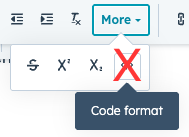
Image caption example (product version 3.14)
Visual Elements
External hyperlinks must be underlined (internal links are not)
- This is the Timebase hyperlink.
Emojis
Use emojis sparingly to signal tone or emphasis. 👍
Screenshots and Images
All images and screenshots should be centered and always carry a caption. Captions are always centered, italicized, and feature a capital for the first letter of the first word only. If providing any product screenshots, always include the version number as documented in the example below.
Screenshots must support the text, not replace it. Always introduce a screenshot with a sentence explaining what the reader should notice. In this screenshot, you can see the main functionality of the HubSpot menu bar:

Image caption example (version 3.14)
Rules:
-
Crop tightly
-
Highlight relevant UI
-
Never stack screenshots without text between them
Videos
Native videos should be short (under 5 minutes) and focused on a single action or concept.
Embed
Use embeds for internal HubSpot content only when the embedded content is maintained and versioned.
External Videos
External videos must be clearly labeled and introduced with context explaining why the reader should watch them.
Tables
When to Use Tables
Use tables to compare values, configurations, or options. Do not use tables for layout or narrative content.
| Item | Description | Notes |
|---|---|---|
| Port | Network port | Default: 4840 |
| Protocol | Communication type | OPC UA |
Callouts and Alerts
Use the title in ALL CAPS with a colon (:) for each callout. There are four different Callouts offered by default. We will not use the Note Callout for any reason.
Callouts may include multiple lines of text, formatting, hyperlinks and
See proper use cases and and examples of the other three callouts below.
💡 Use Tip Callouts to share best practices or efficiency improvements. The Tip Callout should never be used for anything other than a positive or helpful message, never for cautionary messages.
Caution - Use caution when an action could cause minor issues or confusion.
WARNING
Format Warning Callouts as you see shown here, clearly demonstrating by the boldness of the Warning heading the severity of not paying attention to this message. Use warnings when an action could cause data loss, downtime, or safety issues.
Special Characters
Special Characters
Use special characters only when they have technical meaning. Avoid decorative usage. (Example: Coca-Cola®)
Anchors and Table of Contents
Anchors Example
Anchors are quite useful for internal linking. The main purpose of anchors within our documentation is creating and managing a Table of Contents within the article. Learn more by clicking HERE.
Horizontal Line Separator
Section Example
Use horizontal lines to separate major conceptual sections, not individual paragraphs.
Section Example 2
Notice that the horizontal lines above and below define the conceptual section. It is still a part of the same major theme or idea (Internal Writing Rules Template) while clarifying this is an entirely different section from the others.
Examples of sections:
-
Overview to a Tutorial
- Dataset Explanation to a Video
- A Step-by-step guide with complexity that needs clarity.
Final Rule
Consistency Over Creativity
When in doubt, choose the most consistent and predictable options. Our readers succeed when they were looking for and can put it to use effectively.